01
Routed Doors and Panels
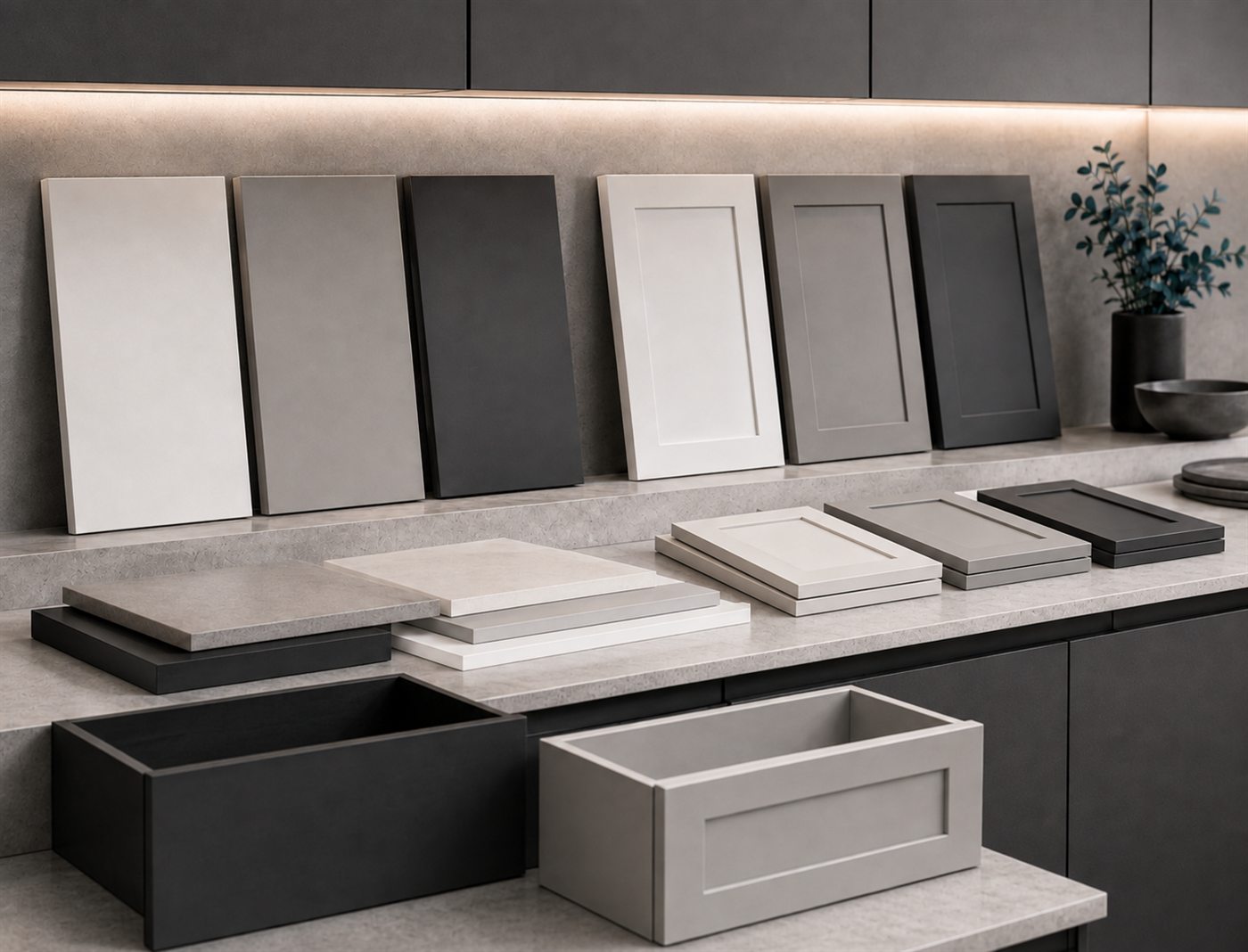
MDF routed doors, drawer fronts, plain doors and plain panels, glass frames and replacement pieces - entered row by row like a cutting list.

Online ordering
The Blacktip Industries order portal replaces the order form and the emailed spreadsheet. Enter your doors, drawer fronts and panels once, see exactly what you have specified, save it as a draft, and send it to us as a quote request or an order.
Blacktip creates portal accounts for approved customers. If you do not have one yet, request an order login and we will be in touch.
What you can specify
The portal covers the same detail we already work from - and shows you the result as you type, so a measurement that cannot be made is caught before it reaches the workshop.
01
MDF routed doors, drawer fronts, plain doors and plain panels, glass frames and replacement pieces - entered row by row like a cutting list.
02
Choose the profile from the visual catalogue and the routing depth that goes with it. Set one design for the whole order and override it on any row.
03
The panel codes you already use: P1-P4 and P1V2-P1V4 for doors and panels, DFF, DFT, DFM, DFB and DFP for drawer fronts, and the F-series for glass frames.
04
Pick the material and thickness per order or per row. The portal knows which sheet each thickness comes from, so it tells you immediately if a panel will not fit.
05
Hinge side, as many cup positions as the door needs, and the machining values - with a diagram so left and right are never ambiguous.
06
Choose the handle machining and the edge it goes on - top, right, bottom or left. A position that clashes with the hinge side is refused, not quietly moved.
07
Every layout arrives with its standard rail and stile sizes. Change only what you need; the values you did not touch stay standard and are marked as such.
08
A simple drawing of the panel updates as you type, so a middle rail measured from the wrong edge is obvious on the screen instead of on the delivery.
09
Attach a drawing to the whole job or to one line when the form cannot describe what you want. Optional: a changed rail size never asks you for a drawing.
10
Work is saved as you type. Start a job on site, finish it in the office, and send it when it is right.
11
Ask about the whole order or about one line, with attachments, and keep the answer beside the order instead of in an email thread.
12
Follow the job from submitted through quoted or in production to ready for collection or dispatch, with the documents attached at each step.
How it works
A quote request gets you pricing and our review first. An order goes straight into the same review and then to a proforma invoice; production starts once payment is received.
Trade accounts see trade pricing and can ask us to add another user from their company. Retail customers order on the same screens at retail pricing.
Get started
Already have a portal login? Sign in and start a new quote request or order. New to Blacktip, or ordering online with us for the first time? Send us a request and we will set the account up for you.